The power of the collective
CollectivView shows PCs, cameras and web pages on your video walls. Built for operators in the crisis room - not for IT specialists.
// Master · Slave · Mosaic · Standalone - synchronised in real time
↑ Click a scenario - the wall reconfigures live
Between your sources and your walls, everything runs over HDMI and capture cards. No network cable, no stream crossing a sensitive information system. That's the guarantee of total isolation.
In an emergency operations centre (COD), several specialist desks - SDIS (CODIS), SAMU, gendarmerie (CORG), Prefecture, communications - work side by side. The room commander is the conductor: they call out a decision out loud, each operator clicks once on their workstation. Everyone sees the same thing. No one needs to master the software - each stays an expert in their own field.
The conductor of the crisis. They call out "switch to the Flood Crisis preset" - no technical handling in the heat of the moment, just a collective decision already prepared.
Each one pushes its sources with one click: the fire desk its field cameras, EMS its dispatch, the civil authority its mapping.
A common view, synchronised in real time. The whole room sees the same thing, at the same moment - the basis of a collective decision.
The best of both worlds: industrial rigour combined with the flexibility of the collective.▸ Feedback from a demonstration in a decision room
"But this is exactly what I've needed for years."▸ A field professional, discovering CollectivView
Four modes to cover every room configuration, from a single workstation to a synchronised multi-screen deployment.
Your pilot workstation. You compose, launch and control every wall and mosaic from a single interface.
Learn more →The controlled screens. Each screen receives its own wall, positioned automatically, synchronised in real time.
Learn more →A multi-wall control view. Supervise and take back control of the Master directly from the mosaic.
Learn more →A self-contained workstation. Everything on one machine, no dependency - ideal for a small setup or a demo.
Learn more →Cameras, drones, screens, web pages, files, remote shares, terminals… If it shows up somewhere, CollectivView puts it on the wall. All in the same tile, freely mixed.
Most solutions need a technician for every change. CollectivView is built to be used by the operator, live.
Up to 20 tiles per workstation, in X1 (full screen) or X4 (4 quadrants) layout. Zoom, drag-and-drop to rearrange. Free composition of the wall.
Learn more →Several high-definition feeds at once via capture cards, with automatic source detection.
Learn more →Plug in a source mid-session: it shows up immediately. Unplug, plug back in - CollectivView recalculates the signal all on its own, with no restart.
Learn more →Websites, RDP, VNC, SSH, Telnet and QuickShare remote sharing - shown in the grid like any other source.
Learn more →Save your configurations and switch from one to another instantly depending on the situation.
Learn more →Save your sources (town-hall camera, fire-service mapping, the duty officer's RDP…) into categories you name. The commander calls it, the operator clicks ★, it's on screen in 5 seconds. No URL to remember.
Learn more →Separate access levels. Activation by machine ID, demo mode, offline operation.
Learn more →A tap to enlarge a tile, a double-tap for full screen. Large icons, adjustable font, touchscreens. Built for operators in the room, with no training at all.
Learn more →Adapt the display to your room: 8 readable themes, interface in 28 languages, 60 icons to choose from per tile and custom aliases.
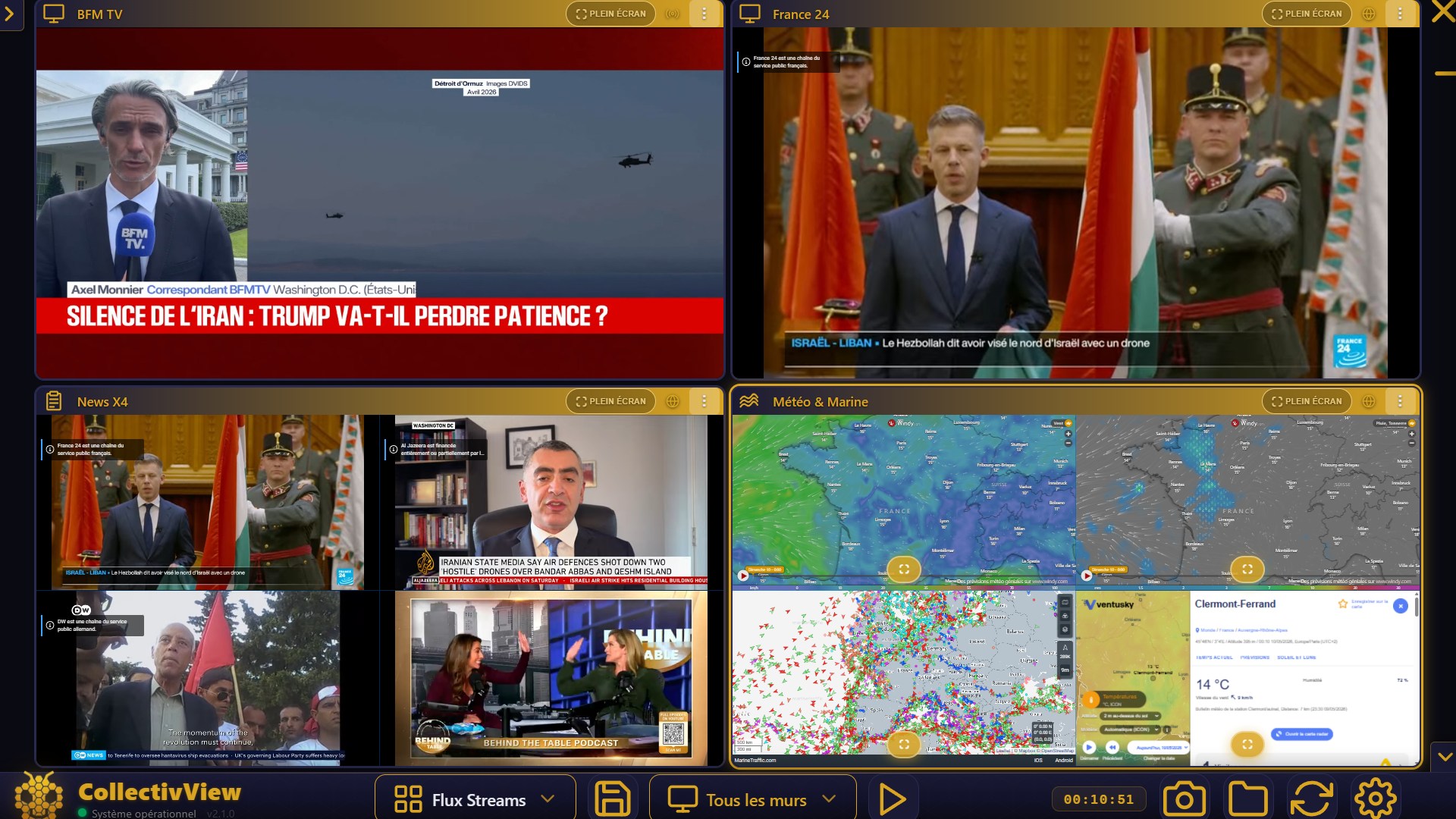
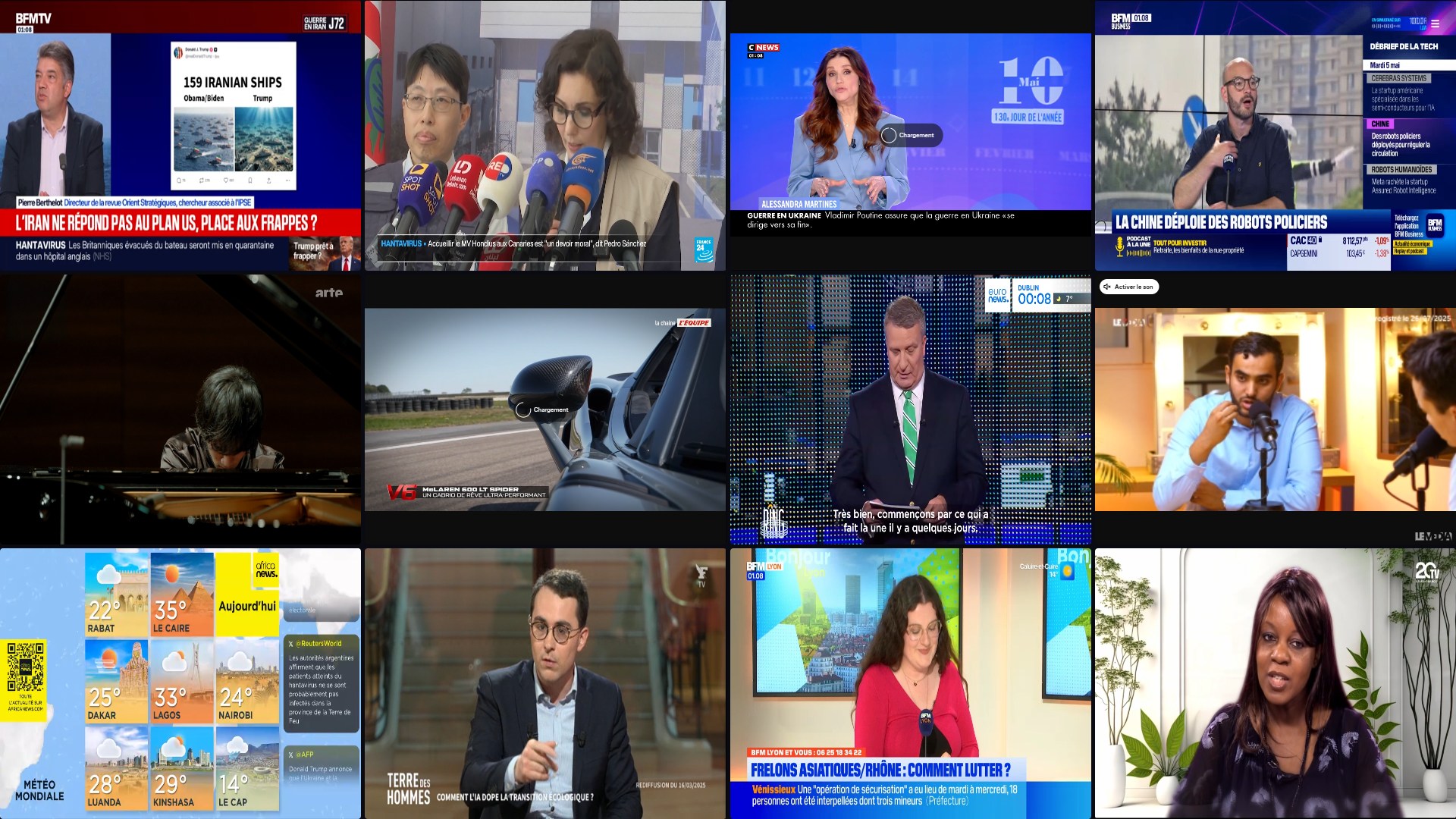
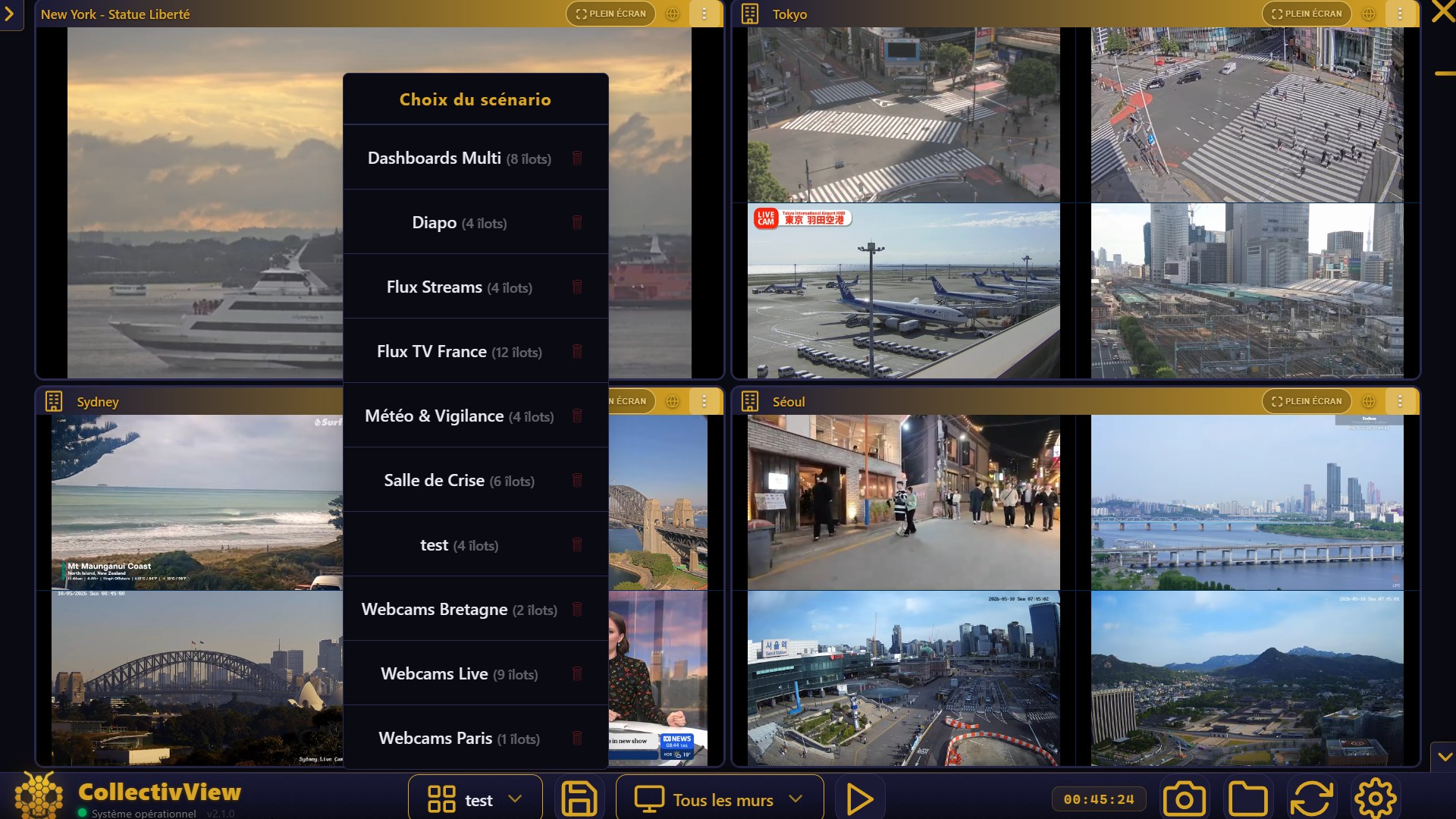
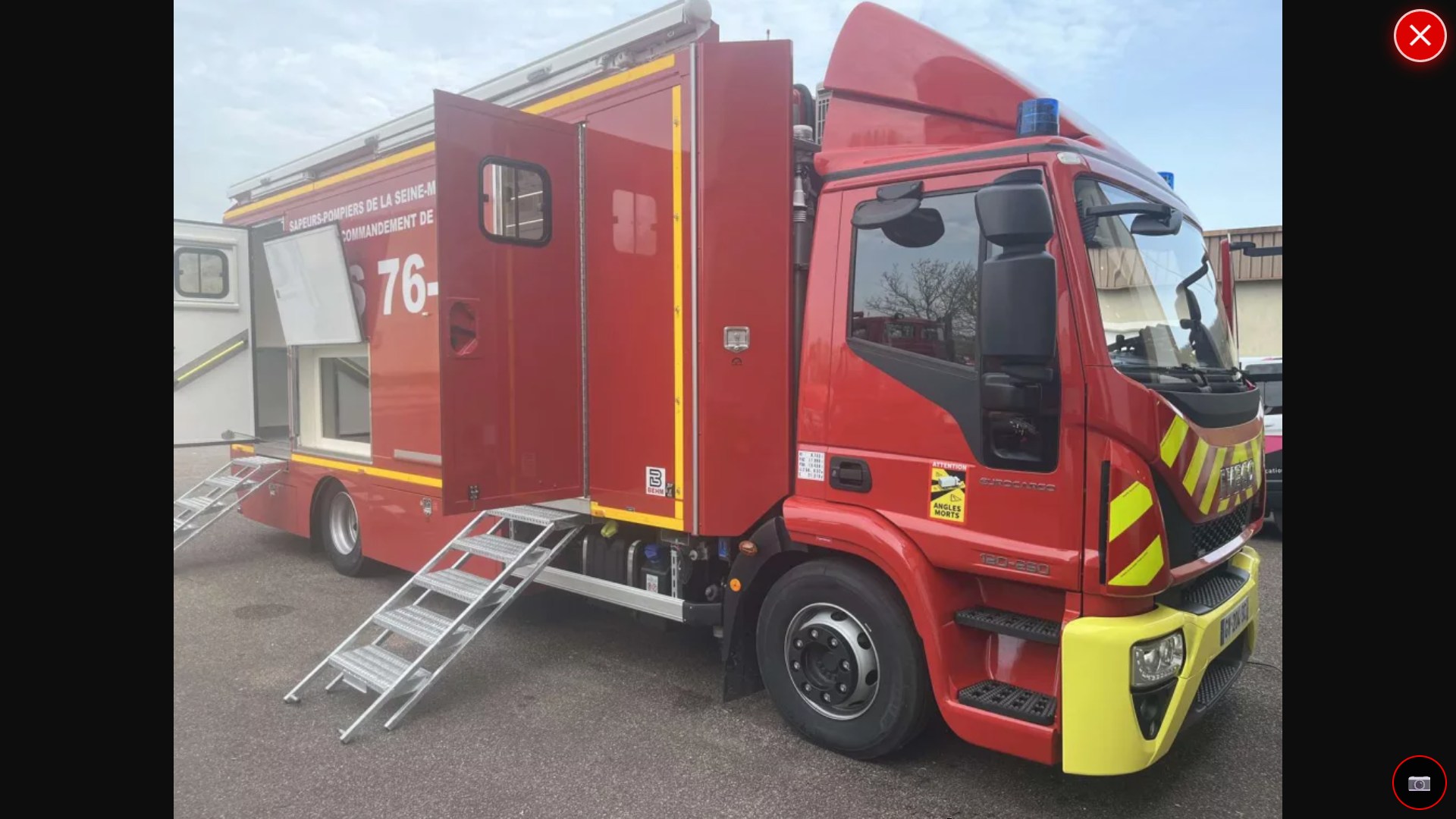
Learn more →Real rooms, real walls. Here is CollectivView as it runs today in command centres. Click to enlarge.
⤢▸ Operator interface · 4 live tiles
⤢▸ 4×3 video wall
⤢▸ Scenario picker
⤢▸ SDIS 76 command vehicle
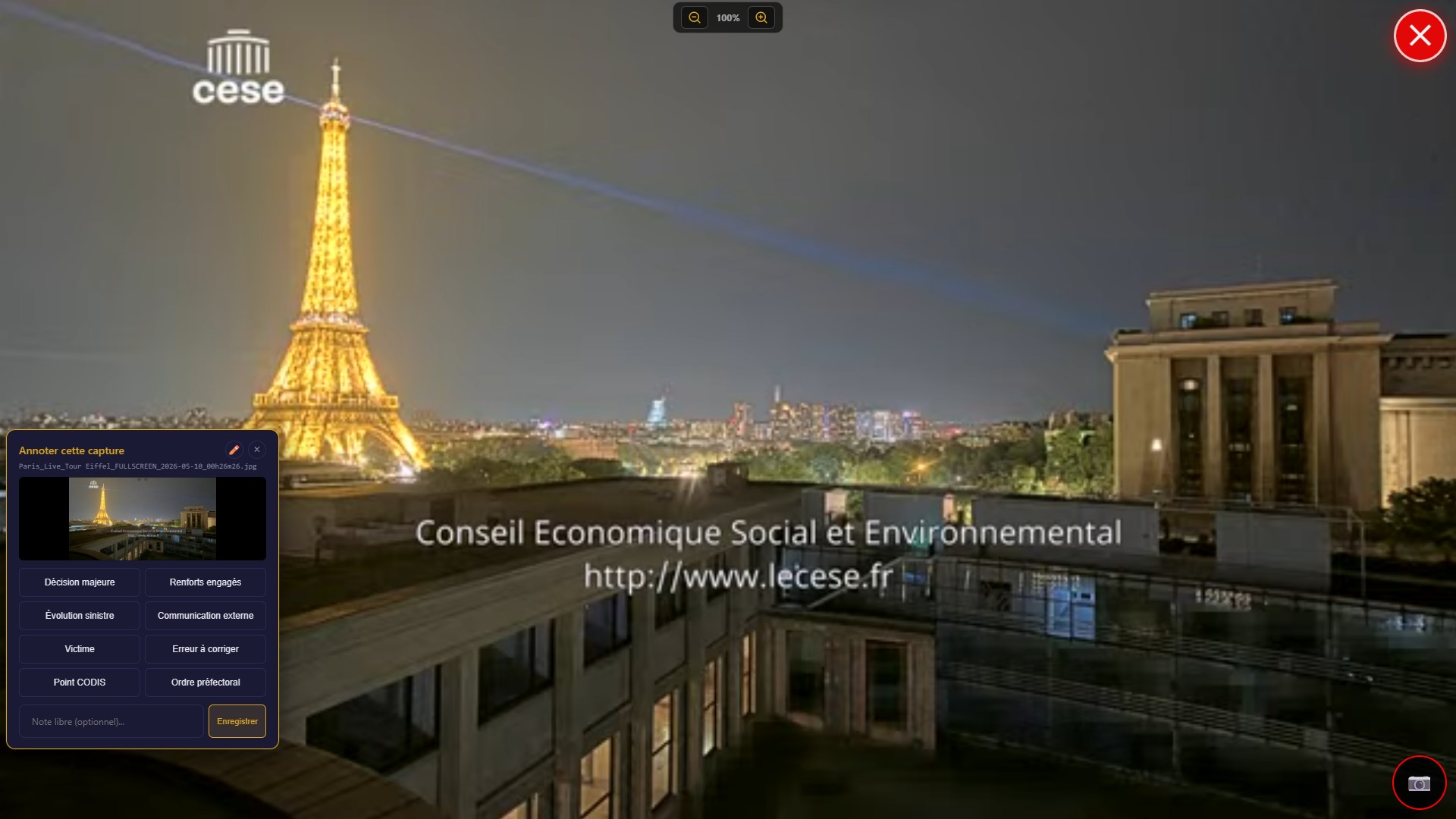
⤢▸ Field annotation
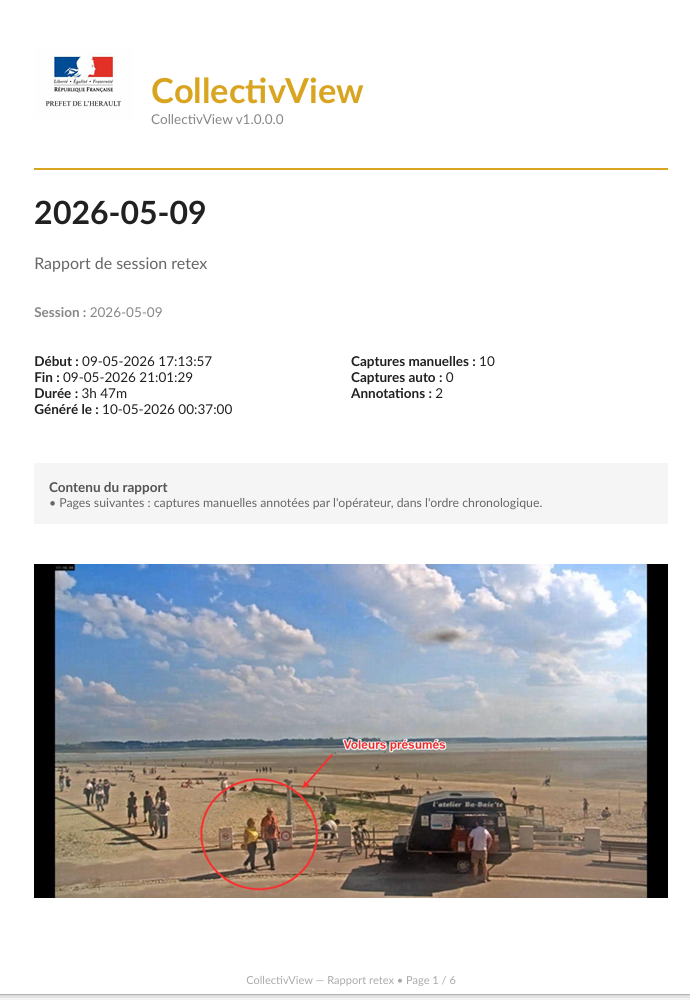
During an incident, CollectivView keeps a record of what was displayed. Enough to feed the after-action review without reconstructing anything afterwards.
⤢▸ PDF debrief report · generated automatically
Real-time clock, source counter, status indicators, alert mode and automatic startup: everything is readable at a glance, even from a distance.
Security, hardware, integration, troubleshooting: the essentials at a glance.
youtube.com/embed/ID link; for Google Maps, an "Embed a map" link. As a last resort, show the site via a capture card connected to a PC.On-premise, hosted in France, perpetual licence. No subscription, no hidden cost.
Test CollectivView in your real conditions before any commitment. Demo mode available.
Linking with your business tools and multi-wall setups: we adapt to your room.
A demo, questions, a crisis-room project? We reply quickly, with no commitment.
contact@easymultidisplay.com
The operator PC in the command room. It composes, launches and controls all the walls and mosaics.
A single workstation commands the whole room.
The Master shows the full management interface: wall selector, mosaic selector, Launch ▶ and Stop ■ buttons, and your saved presets. From this workstation, the operator composes the tiles, applies a scenario and drives every screen in the room.
The secondary screens (Slave mode) and supervision views (Mosaic) are launched and configured automatically by the Master. The operator does nothing on them: they stay at their workstation.
The room's secondary screens. The Master launches and configures them on its own: the operator never touches them.
Nothing to do: they start on their own.
Each Slave screen receives its own wall, positioned automatically and synchronised in real time with the Master. You plug in the screen, the Master handles the rest.
Important: a Slave workstation is never launched by hand - it's always the Master that starts and configures it.
A window that combines several walls and tiles in a single display. Ideal for an authority's tablet or a room commander.
See everything, and take back control.
The mosaic gathers several walls and tiles into a single supervision window - perfect for a tablet placed in front of the authority or the room commander, who keeps an overview without leaving their seat.
It is also the tool that synchronises several rooms: the situation room (COD) and the decision room see exactly the same thing, in real time, each on its own tablets. The same image, at the same moment, in both rooms.
Better still: from the mosaic, you can take back control of the Master. The room commander can switch a scenario or rearrange without going to the operator workstation.
Everything on a single machine, with no secondary walls. Ideal for a small setup, a test or a demo.
One machine, one screen, zero dependency.
Standalone mode brings everything into a single window, with no secondary wall management. It's the simplest mode: plug in, display.
Very handy to test a configuration on a laptop before deploying in the room, or to give a quick demonstration.
A tile = one video source. Each tile shows full screen (X1) or in four quadrants (X4). Up to 20 tiles per workstation.
Compose your wall, freely.
Each source becomes a tile. In X1, the tile fills the whole space; in X4, it shows four 2×2 quadrants - handy to follow four cameras at once. You freely mix source types within a single tile.
Tiles are rearranged by drag-and-drop (from the header), with zoom on a quadrant and full screen on demand. Each tile can carry an icon of your choice (60 available) to be spotted at a glance.
Connect a source during an operation, it appears on the wall with no handling and no restart.
You plug in, it shows up instantly.
No need to stop the setup or reconfigure anything: connect a new HDMI source mid-session, CollectivView detects it and shows it straight away. It's "plug & play" at its simplest.
Better still: if a cable is disconnected and reconnected (a PC unplugged, a source coming back), the signal is recalculated automatically. The operator does nothing - the image returns on its own.
Several high-definition feeds shown at the same time, via your capture cards, with automatic source detection.

All your feeds, at the same time, in HD.
CollectivView shows several high-definition video feeds at once from your HDMI/SDI capture cards. Connected sources are detected automatically - no tedious configuration.
It scales up to 4K if your hardware keeps up, and a single capture card can be shared across several tiles.
Beyond HDMI, CollectivView also shows web pages, remote workstations and field sharing - like any other source.

If it shows up, it goes on the wall.
A tile can show an interactive website (NexSIS web, mapping, dashboard), a remote desktop (RDP, VNC), a console (SSH, Telnet) of the NexSIS or radio server, or an IP camera feed (RTSP / HLS).
With QuickShare, a crew leader in the field shares the situation live from their phone: the tile shows it on the wall without the operator having to touch anything.
Save a complete wall configuration and recall it instantly depending on the situation.

"Switch to the Flood Crisis preset."
A scenario (preset) records all your tiles and sources. From the footer selector, you recall a whole configuration in a single click - for example a Crisis preset that pushes NexSIS, mapping, field cameras and weather radar all at once.
It's the room commander's tool: they call out the scenario, each operator clicks once, and every screen falls into place in seconds.
Save a source once, recall it in one click. The tool that saves the most time in the room.
Five seconds, no URL to know.
Rather than retyping an address, save it once as a favourite with the ★ button. The town-hall camera, the fire-service mapping, the duty officer's remote desktop are always within reach, sorted into categories you name yourself.
The commander says "show the town-hall camera", the operator clicks ★, picks it from the list, it's on screen. No typo possible. Favourites are kept from one session to the next and shared on a common workstation.
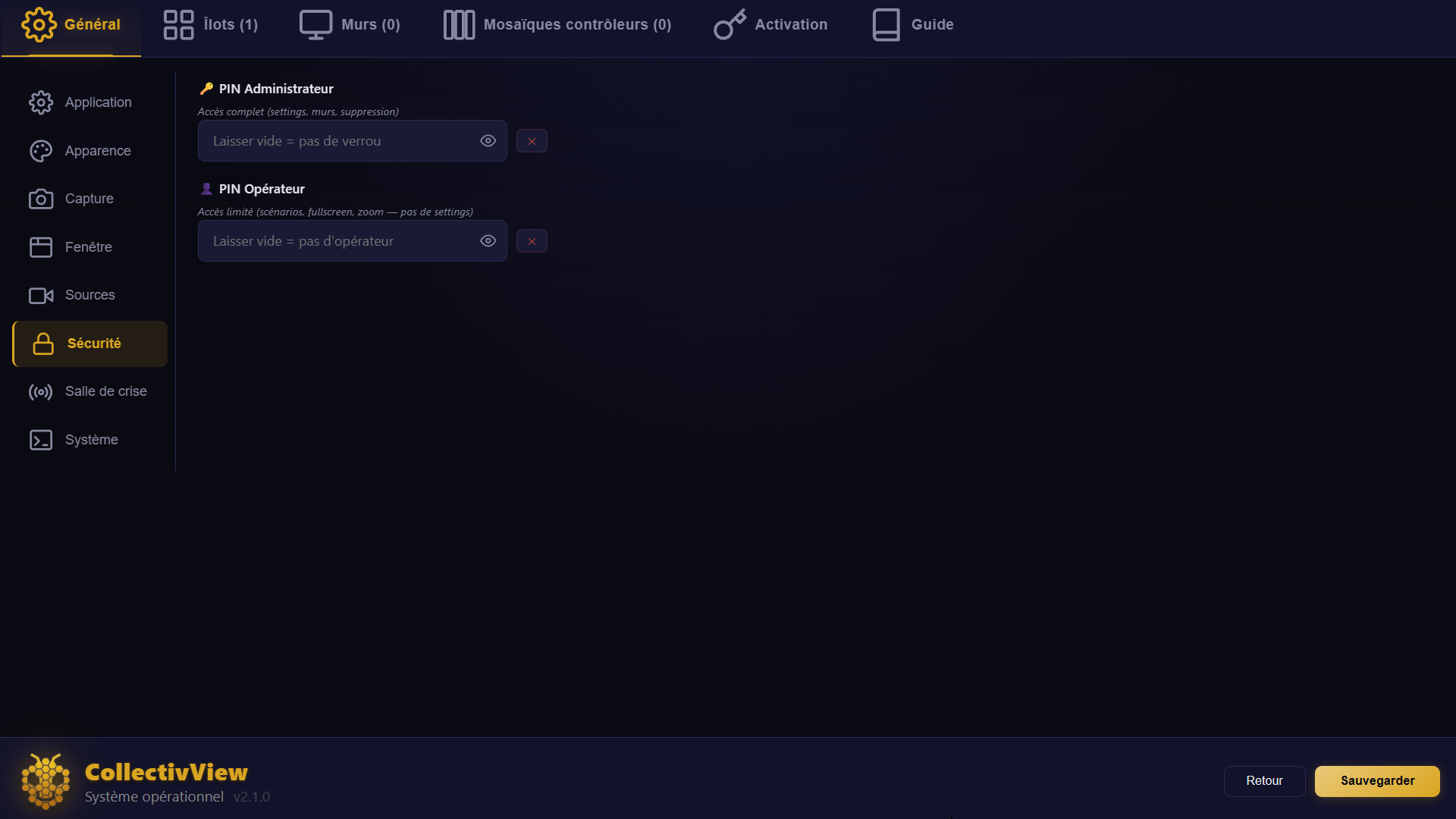
Two access levels to prevent a validated configuration from being changed by mistake.

The operator acts, the admin protects.
Two PIN codes are available: the administrator PIN locks sensitive settings, the operator PIN frames everyday use. They are set once and requested when opening the settings and for sensitive actions.
Activation is tied to the workstation (machine ID), with a demo mode available and fully offline operation - no connection required.
Built for operators in the room, sometimes 50+, under pressure: maximum readability, no learning curve.
What you do is what you see.
Two gestures are enough: a tap enlarges a tile, a double-tap switches it to full screen. Everything is direct, with no intermediate menu - the action on the tablet is mirrored immediately on the wall.
The interface is made to be used first time, by touch: large icons, adjustable font size, big buttons, touchscreen support (from a basic €100 screen to a pro Elo unit). No hidden menu, no manual to learn - in an emergency, the operator acts quickly and confidently, without thinking about the tool.
Adapt the display to your room and your operators.

Your room, your colours, your language.
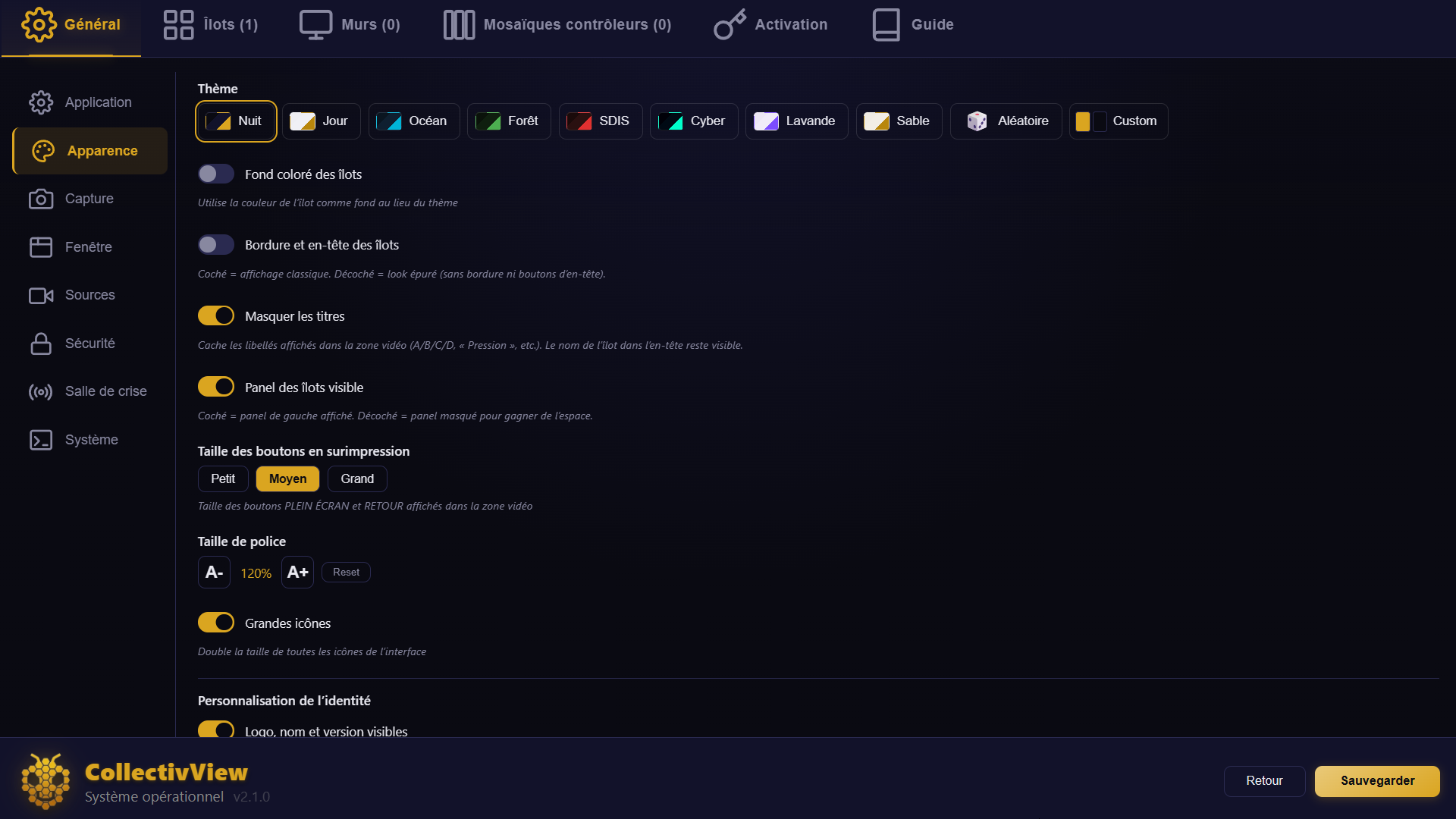
Eight preset themes (including Night, dark with golden accents, Day, high readability, SDIS, fire-service red…) and an interface available in 28 languages. Each tile can take one of 60 icons and a custom alias.
Everything is adjustable from Settings → Appearance: tile background colour, title hiding, button and font size.
The interface adapts to the user, not the other way around. A full settings panel lets you hide whatever you don't use - debrief captures, Crisis mode, certain buttons, logs - to keep only the essentials on screen. "Geek" profiles enable everything and customise to the max; the others get a clean interface. More options, without turning the software into an overengineered mess.
The heart of the system: your HDMI/SDI sources come in through a capture card, with no network between screens.
HDMI in, image on screen. Zero network.
Your sources (operational PC, camera, TV decoder…) come in over HDMI/SDI on a capture card, connected by USB to the workstation. CollectivView detects the card automatically and shows it in a tile.
Recognised cards: Elgato Cam Link (including Cam Link Pro), Datapath, Magewell, Blackmagic DeckLink (including Quad), AVerMedia, Avmatrix, Epiphan, USB Capture, plus USB cameras. Up to 4K, and a single card can feed several tiles.
To capture several PCs at once, don't skimp on the card: an Elgato Cam Link Pro (4 inputs) or a Blackmagic DeckLink Quad guarantee a stable, sharp signal with synchronised video and audio. That's what makes the difference on a dense wall.
OBS, NDI, SplitCam… seen exactly like a capture card. Mix physical and virtual without a second thought.
The virtual, treated like the physical.
Software sources - OBS Virtual Camera, NDI, SplitCam, Vysor - are seen by CollectivView as ordinary capture devices. On the operator side, no difference: you pick them from the same list as physical cards.
The benefit: build a scenario that freely mixes an HDMI camera, an OBS feed and an NDI output in the same tile, with no technical handling.
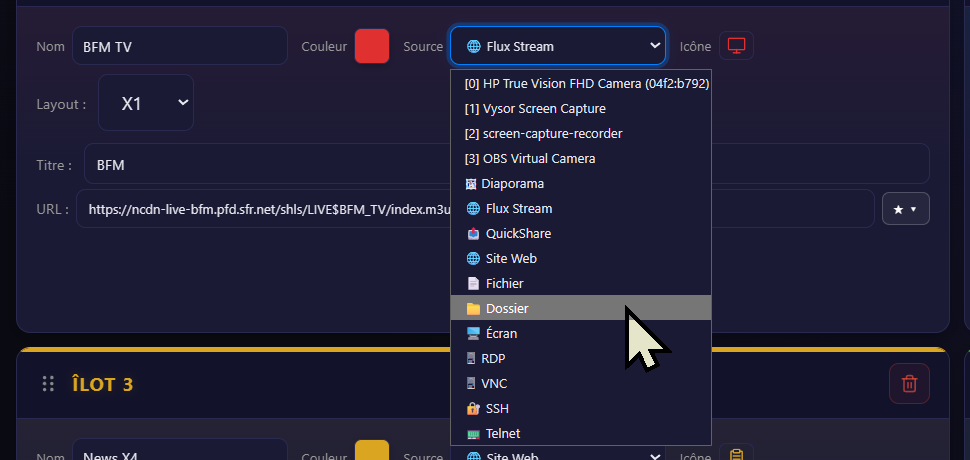
Show a real-time network feed without a capture card: IP camera, drone, HLS, RTMP or MJPEG stream.
The camera comes in over the network, no HDMI cable.
A Stream feed tile shows a network feed directly: the RTSP address of a video-surveillance camera, an RTMP feed, an HLS (.m3u8) or MJPEG stream. Ideal when the source is already on the network and you want to avoid a hardware capture.
It is also the route for drones: most send their video over RTSP / RTMP, shown straight in a tile. And if the drone goes through a dedicated app or website, the workaround is the same as for the web: you capture the PC that displays it - common practice in the field.
The feed can be saved as a favourite for instant recall, like any other source.
An agent shares the situation from their phone, the operations centre sees it on the wall in real time.
The field flows onto the wall on its own.
A crew leader on an incident shows the situation live - a fire, a flood, an accident - from their phone. In the room, the QuickShare tile displays it on the wall without the operator having to touch anything.
The operations centre sees the field in real time. QuickShare handles several agents and geolocation, hosted in France.
Show a web page directly in a tile: mapping, weather, NexSIS web, internal dashboard.
The web, in the grid, interactive.
A Website tile embeds a page directly on the wall - NexSIS web, ARTEMIS, Ventusky (weather radar), Google Maps, an intranet dashboard. The interactive mode even lets you click in the page directly from the grid. In X4, you can show up to 4 pages side by side.
Good to know: web display goes through an iframe, and some sites (Google, YouTube, banks…) refuse to be embedded in it for security reasons - it's not a CollectivView fault. For YouTube, use the embed link.
The workaround is universal: any site, even one incompatible with iframes, shows up as soon as it is open on an operator PC that you capture over HDMI. In other words, no site is out of reach.
An automatic carousel of captures that build up over the session.
Keep a trace, image after image.
Enabled by the 📷 Slideshow button in a tile's header, it gathers screen captures and cycles through them. Especially useful to archive critical states: a map, the state of a dashboard, a situation at a given moment.
The images are kept for the whole session and fed automatically by the quadrant captures.
Show media stored on the workstation, with no network at all.
Your local media, on the wall.
A File tile shows local media: an image (JPG, PNG, GIF), a video (MP4, MOV, WEBM) or a PDF. In X1 one full-frame media, in X4 four media in a 2×2 grid - handy to show a map, an instruction and a situation video at the same time.
Cycle through a whole folder's content, with no intervention.
One folder, and it runs on its own.
The Folder tile loops through a directory's content: each video plays to the end, each image or PDF is shown for an adjustable delay. Ideal for incident photo archives or a presentation running continuously.
Capture a full screen or an application window of the workstation, live.
Show what's running on your PC.
The Screen source captures a full screen or a specific application window live - for example a business app running locally, to project it on the wall without a capture card. A picker opens when the tile starts to choose the target.
Show the desktop of a remote Windows PC or server, live in the tile.
Monitor a workstation without leaving the room.
Remote Desktop (RDP) shows a remote Windows workstation live: a business workstation, an application server, an admin console. You enter the address, username and password; in X4, up to 4 desktops side by side.
Good to know: RDP (like VNC, SSH, Telnet) requires a network gateway service on your local network - your administrator provides the values to enter.
Like RDP, but compatible with Linux, macOS and Windows.
The same need, every system.
VNC shows the desktop of a remote machine running a VNC server, whatever its system - Linux, macOS, Windows. Same use as RDP, to supervise a workstation or a console, in X1 or X4.
Good to know: requires a local network gateway; the values (address, port, password) are provided by your administrator.
Follow the logs and status of a Linux/Unix server, live.
The server console, live on the wall.
The SSH tile opens a secure terminal on a Linux/Unix server: follow the NexSIS or radio server logs, check backup status, run a command. The terminal display is customisable (font, size, colours, time zone, startup command).
Good to know: connection by password or private key, via a local network gateway provided by your administrator.
The legacy terminal for switches, routers and industrial equipment.
For older-generation hardware.
Telnet is an unencrypted terminal, used for legacy network equipment (switches, routers, industrial equipment). Same uses and same display options as SSH, but without encryption - to be reserved for secure internal networks.
During the incident, CollectivView keeps a record of what was displayed. The after-action review is ready at the end.

The operation documents itself.
A time-stamped debrief session records the captures: on demand (a click on 📷) or automatically at a set interval. Each capture can be annotated with ready-made field labels - Major decision, Reinforcements committed, Control-room note, Authority order… - or a free drawing to point out the essentials.
You can also record a video sequence from a tile with a long press. At the end of the session, CollectivView generates a complete ZIP folder and a PDF report ready to share, logo and operator included. A real-time mirror to NAS saves everything continuously, with persistence even after a crash.